Free Word template
Funeral or Memorial Service Program
Funeral programs are often made in a hurry, by a family member or a church secretary with a day or two's notice. This template is built for that. It prints on one sheet of ordinary letter paper and folds like a bulletin, and every part a family usually wants is already in place.
Clicking the button saves funeral-program.docx (a Word document, 8 KB) to your Downloads folder. No sign-up, no email address.
- PaperUS Letter, landscape. Folds to 5½ × 8½ inches.
- PrintingOne sheet, printed on both sides
- In the file2 pages
- Opens inWord, Google Docs, LibreOffice
What it looks like
What's in it
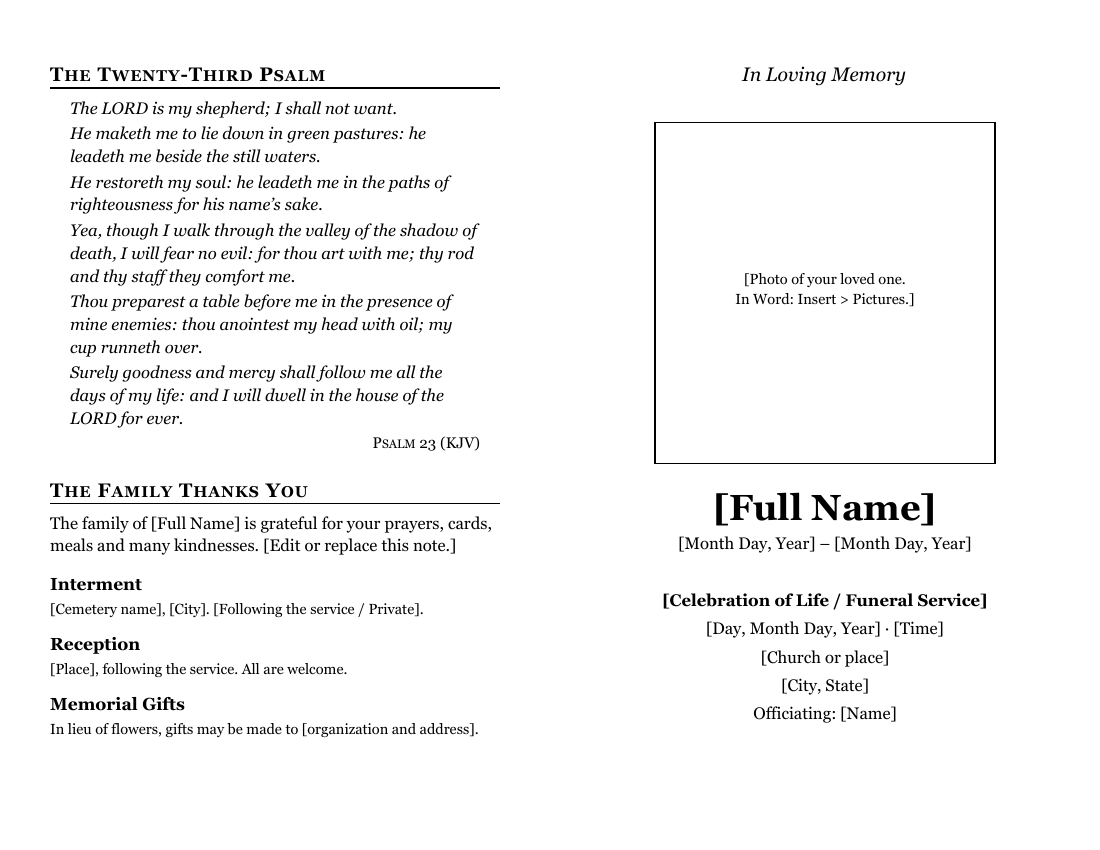
- Front cover: "In Loving Memory", a large box for a photograph, the person's full name, the dates of birth and death, and the service type, day, time, place and officiant.
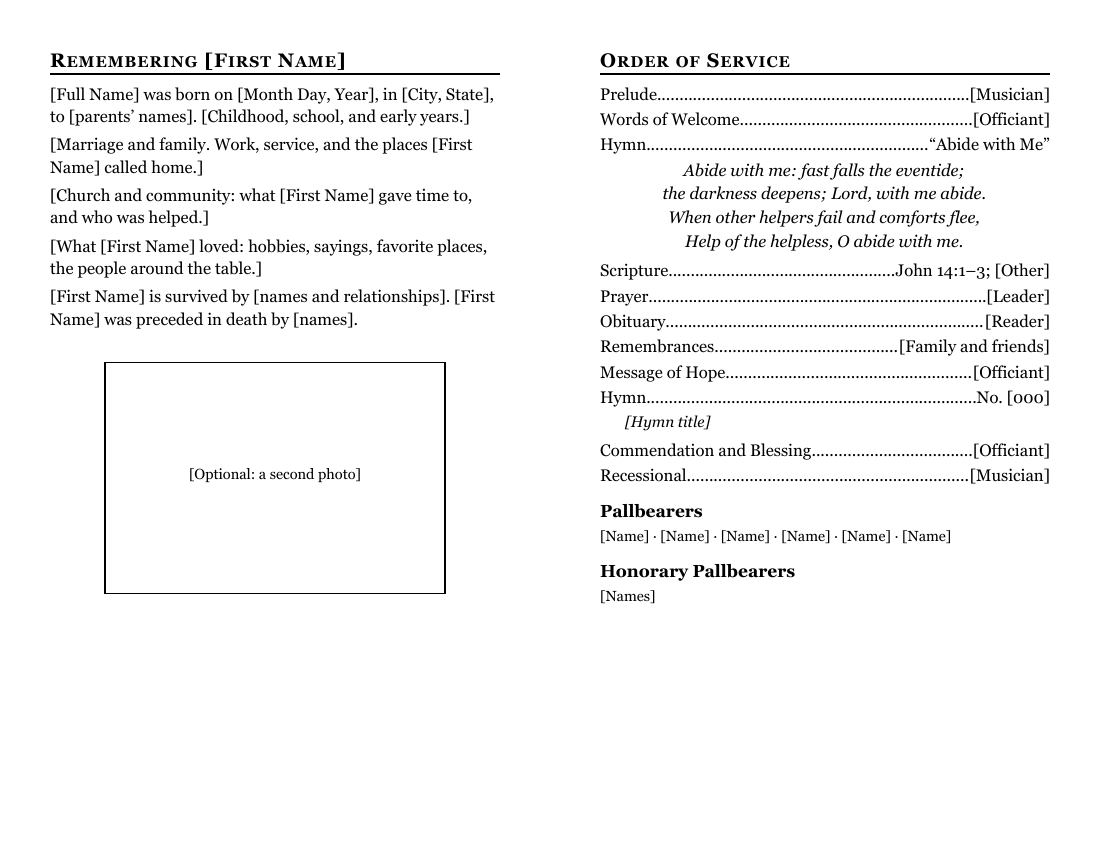
- Inside left: "Remembering [First Name]", five short paragraphs that walk you through a life story (birth and family, marriage and work, church and community, what they loved, the survivors), plus a box for a second photo.
- Inside right: the order of service, from prelude to recessional, with the first verse of "Abide with Me" printed under the first hymn, and lines for pallbearers and honorary pallbearers.
- Back cover: Psalm 23 in the King James Version, a note of thanks from the family, and where to go for the interment, the reception and memorial gifts.
"Abide with Me" is Henry F. Lyte's hymn; the verse printed here is the public-domain text as shown on Hymnary.org. Psalm 23 is from the King James Version, which is in the public domain in the United States.
Fill it in with Word
- Use Replace (Ctrl+H, or Control+H on a Mac; Microsoft's steps) to put the full name in everywhere at once: replace
[Full Name], then[First Name]. - For the photograph, click inside the large box, delete the note, and choose Insert > Pictures. A scanned print works fine. If it comes in too big, click it and drag a corner handle to shrink it.
- Write the life story in plain sentences. If the obituary has already run in the newspaper, you can paste it in. Select the pasted text and pick the "Normal" style on the Home tab so it matches the rest.
- Change the order of service to match what the pastor gives you. Delete the lines you don't need. A hymn can be listed by title (as the first one is) or by number from the pew hymnal.
- If the family wants the words of another song printed, check its copyright first. Words still under copyright need permission to print, and some short licenses require printed copies to be destroyed afterward, which doesn't suit a program people keep. Listing a song's title never needs permission. Our guide to hymns and copyright explains the choices.
To find anything you missed, use Word's search box (Ctrl+F on Windows, Command+F on a Mac; Microsoft's list of Word shortcuts) and type a single [. Word jumps to every bracket still in the document. When the search finds nothing, you're done.
Ask someone who didn't write it to read the names and dates aloud before you print. It's the part families notice.
Open it in Google Docs or LibreOffice
If the family wants to see the program before it's printed, upload it to Google Drive and share it, or save it as a PDF and email it. In Google Docs, check the cover photo and the column break between the two inside panels after you upload (Google: work with Office files); photos added in Word sometimes sit differently.
LibreOffice Writer opens the file with File > Open, and File > Export As > Export as PDF makes a copy to send (LibreOffice Help).
Print and fold it
Print two-sided, flipped on the short edge, then fold with the photo facing out. Print one first and check it: the photo cover should be on the front, and Psalm 23 on the back.
For 100 copies or more, a print shop or the church copier will be faster than a home inkjet. Bring the file on a USB stick, or bring a PDF, which prints the same everywhere. Photos print best on a laser printer or copier; on an inkjet, choose the "best" quality setting for the cover side.
Heavier paper (a cardstock or "cover" weight) makes a sturdier keepsake. Check that your printer can take it, and print one first.
Related help
More templates
- Folded Sunday Bulletin2 pages
- Large-Print Order of Worship2 pages
- Monthly Church Newsletter2 pages
- Wedding Program2 pages
- Concert or Event Program2 pages
- Prayer List2 pages
- Half-Sheet Announcements1 page
- Club Newsletter2 pages
- Family Cookbook Recipe Pages4 pages