Free Word template
Monthly Church Newsletter
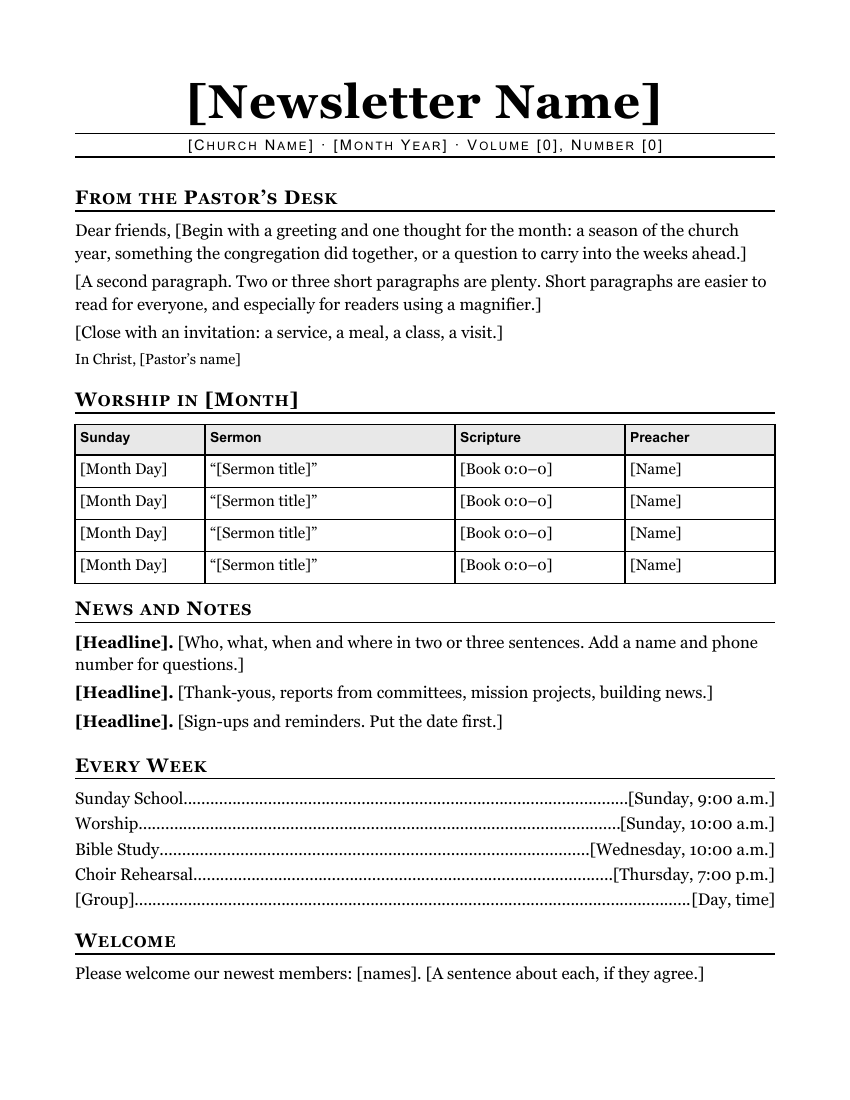
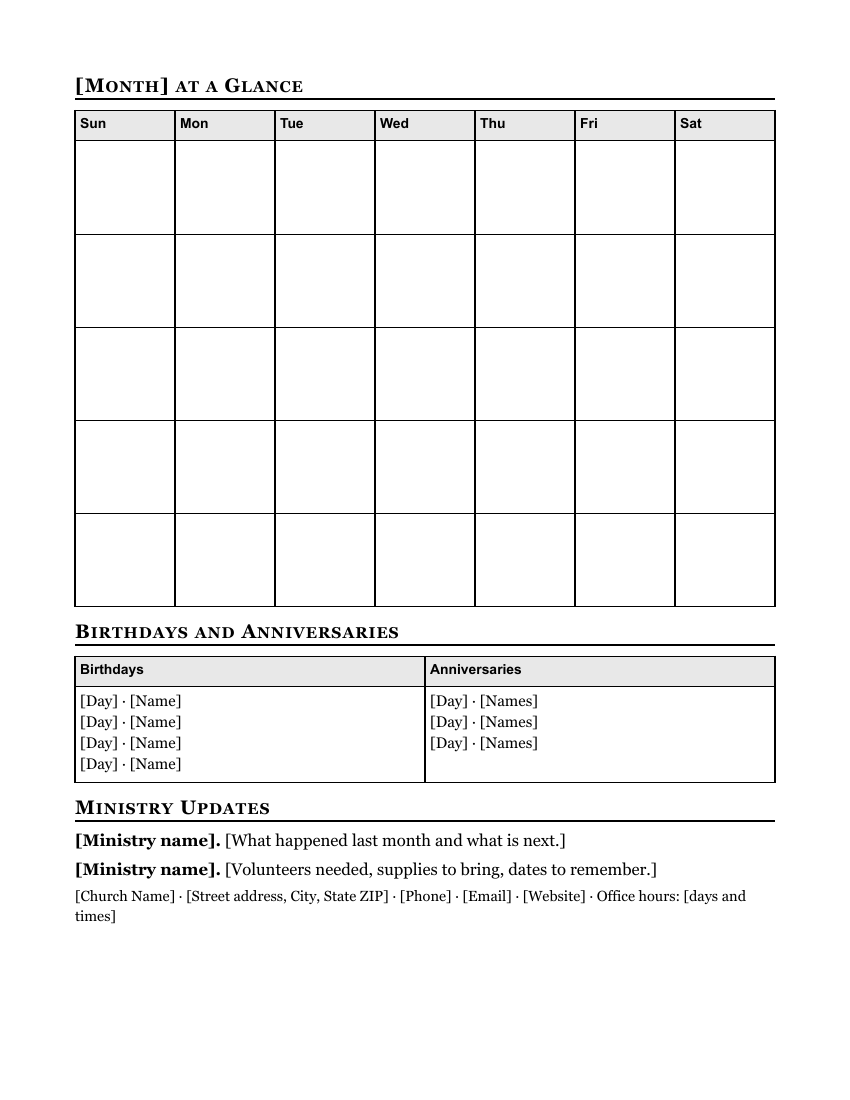
Many church offices built their monthly newsletter in Publisher, and that file is the one people miss most. This template rebuilds the usual layout in Word: a big masthead, the pastor's letter, the worship schedule as a table, short news items, and a full calendar grid for the month on the back.
Clicking the button saves church-newsletter.docx (a Word document, 8 KB) to your Downloads folder. No sign-up, no email address.
- PaperUS Letter, portrait.
- PrintingOne sheet, printed on both sides (or two pages to email)
- In the file2 pages
- Opens inWord, Google Docs, LibreOffice
What it looks like
What's in it
- Masthead: your newsletter's name in large type, with a ruled line for the church name, month, volume and issue number.
- From the Pastor's Desk: three short paragraphs with a sign-off.
- Worship in [Month]: a table with the date, sermon title, scripture and preacher for each Sunday.
- News and Notes, Every Week (the regular schedule with dotted leaders) and Welcome for new members.
- [Month] at a Glance on the back: a seven-day calendar grid with five weeks, big enough to write two or three events in each box.
- Birthdays and Anniversaries side by side, Ministry Updates, and a footer line with your address, phone and office hours.
Fill it in with Word
Start with the masthead. Click on [Newsletter Name] and type your newsletter's name. If it's long, it will wrap to two lines; select it and pick a smaller size from the Home tab until it fits on one.
The calendar is a table. Click in a box and type. To number the days, type the date in the first line of each box and press Enter before the events. If the month starts on a Wednesday, leave the first three boxes empty. If it needs a sixth week, click in the last row, then on the Table Layout tab choose Insert Below (Microsoft's steps).
Add a Sunday to the worship table the same way: click in its last row and choose Insert Below. To delete a news item, select the whole paragraph and press Delete.
To find anything you missed, use Word's search box (Ctrl+F on Windows, Command+F on a Mac; Microsoft's list of Word shortcuts) and type a single [. Word jumps to every bracket still in the document. When the search finds nothing, you're done.
Ask before you print anyone's birthday. A month and day without the year is the usual courtesy.
Open it in Google Docs or LibreOffice
To work on it with others, upload it to Google Drive (New > File upload) and open it in Google Docs (Google: work with Office files). Share it with the pastor so the letter can go straight in. Check that the calendar still fits on page 2 and that the masthead hasn't wrapped.
In LibreOffice Writer, open the .docx with File > Open and keep saving it in Word format when asked, so the next person can open it in Word.
Print, email or mail it
To print: two-sided, flipped on the long edge, so the calendar is on the back of the letter.
To email: save a PDF (in Word, File > Save As and choose PDF; in Google Docs, File > Download > PDF document). A PDF looks the same on every phone and computer, and nobody can change it by accident.
To mail: fold it in thirds to fit a standard business envelope, and print the addresses on labels from your member list. Our address label guide walks through it in Word and with a Google Sheets list.
Related help
More templates
- Folded Sunday Bulletin2 pages
- Large-Print Order of Worship2 pages
- Funeral or Memorial Service Program2 pages
- Wedding Program2 pages
- Concert or Event Program2 pages
- Prayer List2 pages
- Half-Sheet Announcements1 page
- Club Newsletter2 pages
- Family Cookbook Recipe Pages4 pages