Free Word template
Prayer List
Most churches keep a prayer list, and most of them keep it in a file nobody else can open. This template gives the list a clear, printable shape: one table for members and families, and short tables for the people who are easy to forget.
Clicking the button saves prayer-list.docx (a Word document, 8 KB) to your Downloads folder. No sign-up, no email address.
- PaperUS Letter, portrait.
- PrintingOne sheet, printed on both sides
- In the file2 pages
- Opens inWord, Google Docs, LibreOffice
What it looks like
What's in it
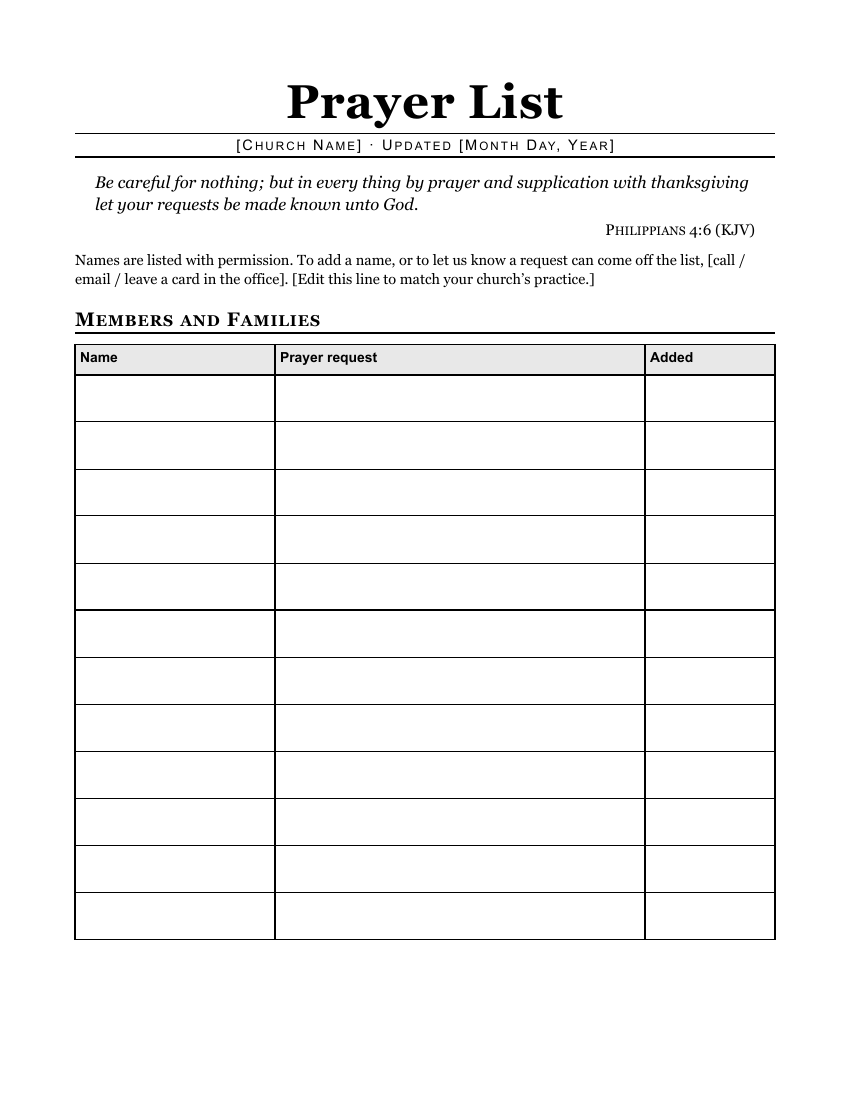
The front page has a heading, a line for the date you last updated it, Philippians 4:6 in the King James Version, and a sentence about permission (edit it to match what your church does). Below that is a twelve-row table for Members and Families with three columns: the name, the request, and the date it was added.
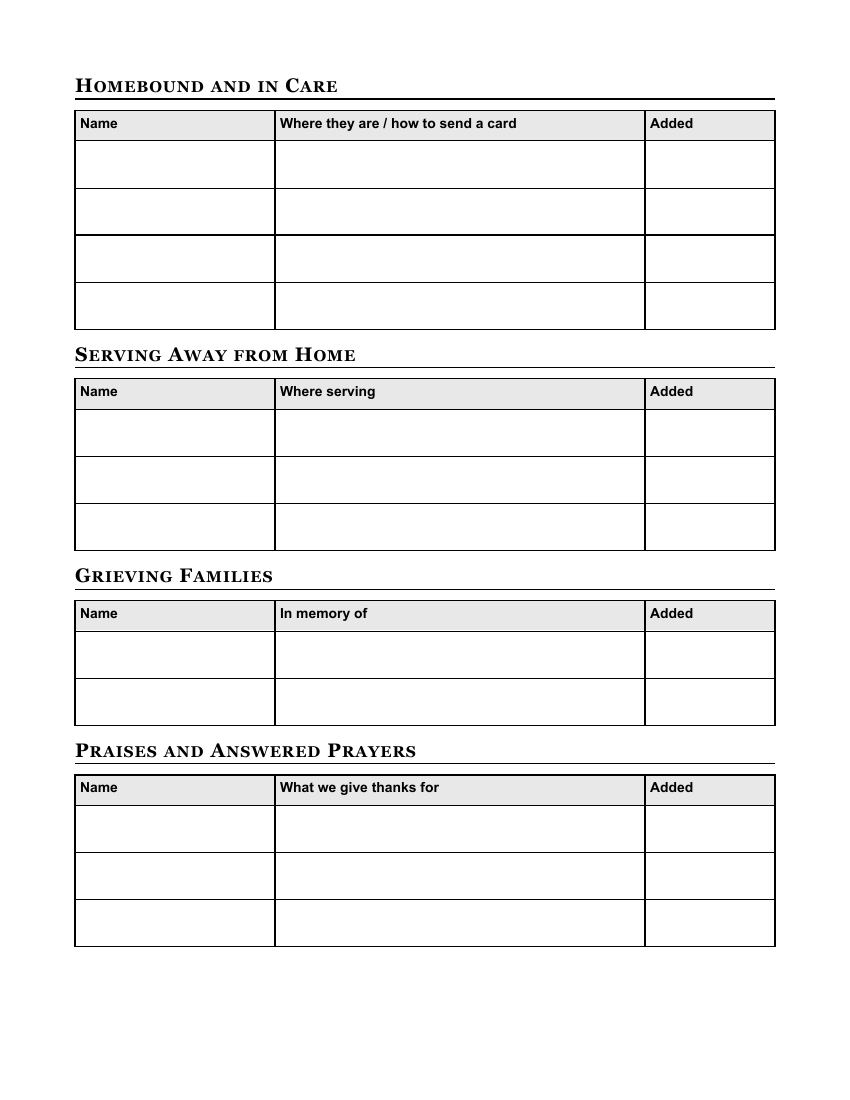
The back page has four shorter tables: Homebound and in Care (with room for where to send a card), Serving Away from Home (military, missionaries, students), Grieving Families, and Praises and Answered Prayers, so the good news gets prayed over too.
Fill it in with Word
Click in a box and type. The rows grow taller if a request runs to two lines. To add a row, click in the last box of a table's last row and press Tab; Word adds a new row (Microsoft's steps). To remove an empty row in Word for Windows, right-click in it, click Delete on the small toolbar that appears, and choose Delete Rows (Microsoft's steps). On a Mac, click in the row, then on the Table Layout tab choose Delete and pick the option for rows.
The "Added" column is there for a reason. Lists only grow unless someone prunes them. Once a month, look at anything more than six weeks old and ask the family whether it should stay.
Keep it short and kind. "Healing after surgery" says enough; a diagnosis, a hospital room number or family details don't belong on a sheet that leaves the building. If the list goes out by email, remember that it can be forwarded.
To keep a running list, save the file once as your master. Each week, update it, change the date at the top, and save. If you want a record of past lists, use File > Save As with the date in the name.
Open it in Google Docs or LibreOffice
A prayer list is a good file to share with the prayer team in Google Docs so more than one person can update it. Upload the .docx to Google Drive and open it (Google: work with Office files). Then share it only with the people who need it; the share button lets you name each person rather than "anyone with the link".
LibreOffice Writer opens the file with File > Open. Tables, row heights and the shaded headings come through unchanged.
Print it
Print two-sided, flipped on the long edge. If your list is longer than two pages, that's fine; the table headings repeat at the top of each new page, so every page makes sense on its own.
For the homebound, consider a large-print copy: select everything (Ctrl+A, or Command+A on a Mac), set the size to 18 points, the base size in the American Council of the Blind's large-print guidelines (ACB), and print. The tables will grow onto more pages, which is fine.
Related help
More templates
- Folded Sunday Bulletin2 pages
- Large-Print Order of Worship2 pages
- Monthly Church Newsletter2 pages
- Funeral or Memorial Service Program2 pages
- Wedding Program2 pages
- Concert or Event Program2 pages
- Half-Sheet Announcements1 page
- Club Newsletter2 pages
- Family Cookbook Recipe Pages4 pages