Free Word template
Folded Sunday Bulletin
This is the bulletin most churches hand out at the door: a single sheet of letter paper, printed on both sides, folded in half so it opens like a small book. It is laid out for you already, so you don't need Word's booklet settings. Type over the words in brackets, print on both sides, fold, and it's done.
Clicking the button saves folded-sunday-bulletin.docx (a Word document, 8 KB) to your Downloads folder. No sign-up, no email address.
- PaperUS Letter, landscape. Folds to 5½ × 8½ inches.
- PrintingOne sheet, printed on both sides
- In the file2 pages
- Opens inWord, Google Docs, LibreOffice
What it looks like
What's in it
The file has two pages. Each page is one side of the sheet, split down the middle into two panels.
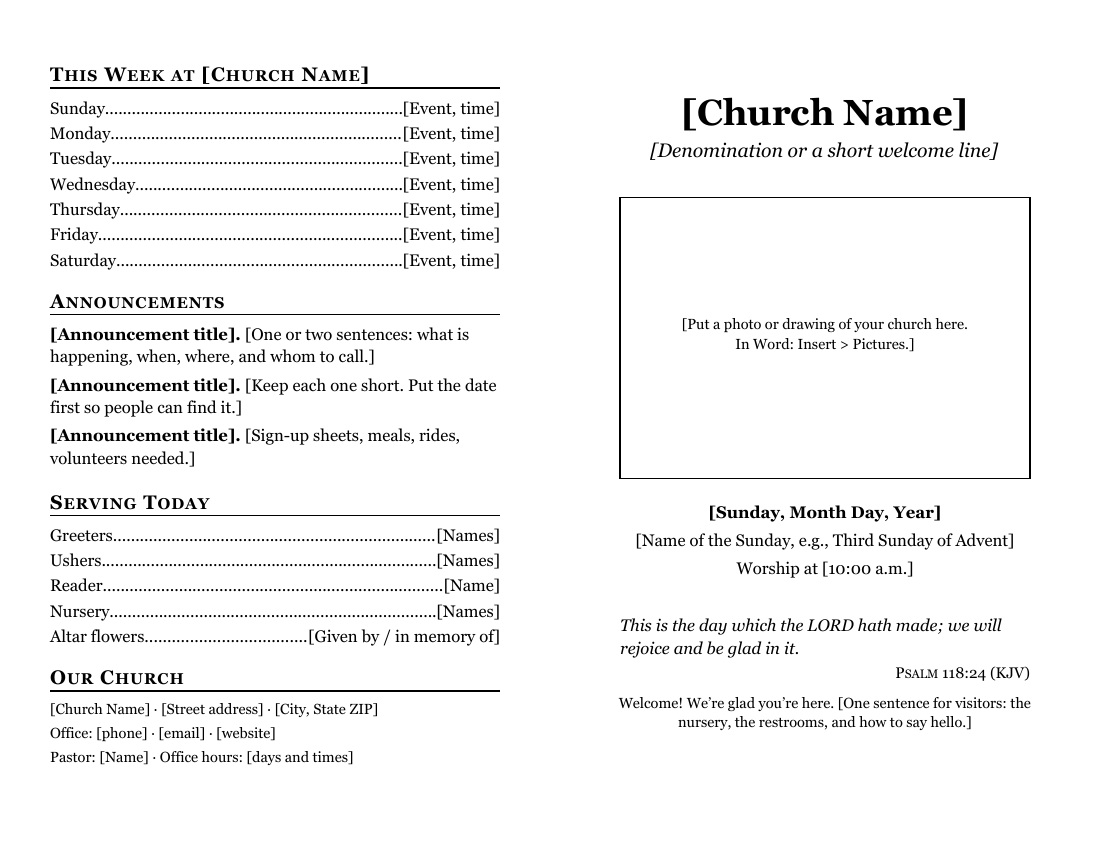
- Front cover (right half of page 1): church name, a box for a photo or drawing of your building, the date, the name of the Sunday, the service time, a verse (Psalm 118:24 from the King James Version) and a welcome line for visitors.
- Back cover (left half of page 1): "This Week" with a line for each day, three announcements, the people serving today, and your address, phone and office hours.
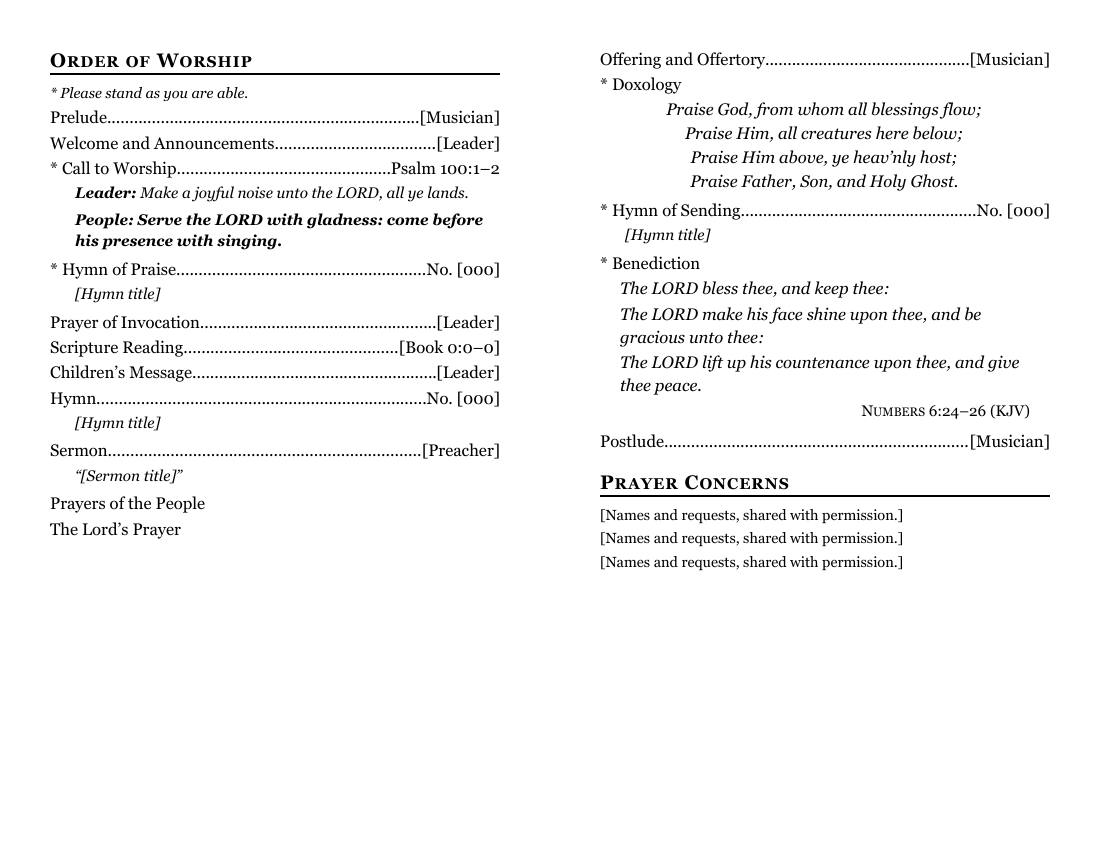
- Inside (page 2): the order of worship, with dotted lines leading to the hymn numbers and names on the right. It includes a responsive call to worship from Psalm 100, the words of the Doxology, the Aaronic blessing from Numbers 6, and room for prayer concerns.
The scripture is the King James Version and the Doxology is Thomas Ken's text, written about 1674 (Hymnary.org). Both are in the public domain in the United States, so you can print them without a license. If you add a modern hymn or a newer Bible translation, read hymns and copyright in bulletins first.
Fill it in with Word
- Open the file. If Word shows a yellow bar that says "Protected View", click Enable Editing. Word for Windows opens files that came from the internet that way as a precaution (Microsoft explains Protected View).
- Use Replace for anything that appears more than once. Press Ctrl+H (on a Mac, Control+H), type
[Church Name]in the first box and your church's name in the second, then click Replace All (Microsoft's steps). - Click on the rest of the bracketed words one at a time and type over them. The dotted lines stretch or shrink by themselves.
- For the cover picture, click inside the empty box, delete the note, then choose Insert > Pictures and pick a photo from your computer (Microsoft's steps). If it comes in too large, click it and drag a corner handle to shrink it until it fits the box.
- Save each week's bulletin under its own name (for example, "Bulletin November 1"), so the blank template stays clean for next week.
To find anything you missed, use Word's search box (Ctrl+F on Windows, Command+F on a Mac; Microsoft's list of Word shortcuts) and type a single [. Word jumps to every bracket still in the document. When the search finds nothing, you're done.
The two halves of each page are Word columns. If an announcement runs long and pushes the order of worship onto the wrong panel, click the ¶ button (Show/Hide ¶) on the Home tab (Microsoft Support). You'll see a "Column Break" line at the bottom of the left panel on each page. Shorten the text above it until everything fits, or make the type a little smaller.
Open it in Google Docs
Google Docs has no "use this template" link for a file from another website, but it opens Word files you upload. Go to drive.google.com, click New, then File upload, and pick the bulletin from your Downloads folder (Google's upload instructions). Double-click it in Drive and it opens in Google Docs (Google: work with Office files).
Check both pages before you print. Google Docs supports two columns and column breaks (Format > Columns and Insert > Break > Column break), but it doesn't reproduce every Word feature, and the dotted leader lines are the part most likely to look different. If the panels shift, a column break may need to move.
Open it in LibreOffice
LibreOffice Writer, the free word processor, opens the file directly: File > Open, then choose the .docx. This is how we test every template; the pictures on this page were made by LibreOffice from the same file you download. Save with File > Save, and when it asks which format to keep, choose the Word format.
Print and fold it
- Print page 1 and page 2 on the same sheet: choose two-sided printing, set to flip on the short edge. (In Word for Windows, that's "Print on Both Sides" with "Flip pages on short edge". On a Mac, open the print settings and choose short-edge binding.)
- Fold the sheet in half with the front cover facing out. The cover is the right half of page 1.
- If your printer only prints one side, print page 1, put the sheet back in the tray, and print page 2. Mark the first test sheet with a pencil arrow so you learn which way your printer wants it.
Always print one copy first and fold it. If the inside comes out upside down, switch from short edge to long edge (or turn the sheet around in the manual method). Our booklet printing guide covers the church copier, too.
Related help
More templates
- Large-Print Order of Worship2 pages
- Monthly Church Newsletter2 pages
- Funeral or Memorial Service Program2 pages
- Wedding Program2 pages
- Concert or Event Program2 pages
- Prayer List2 pages
- Half-Sheet Announcements1 page
- Club Newsletter2 pages
- Family Cookbook Recipe Pages4 pages