Free Word template
Club Newsletter
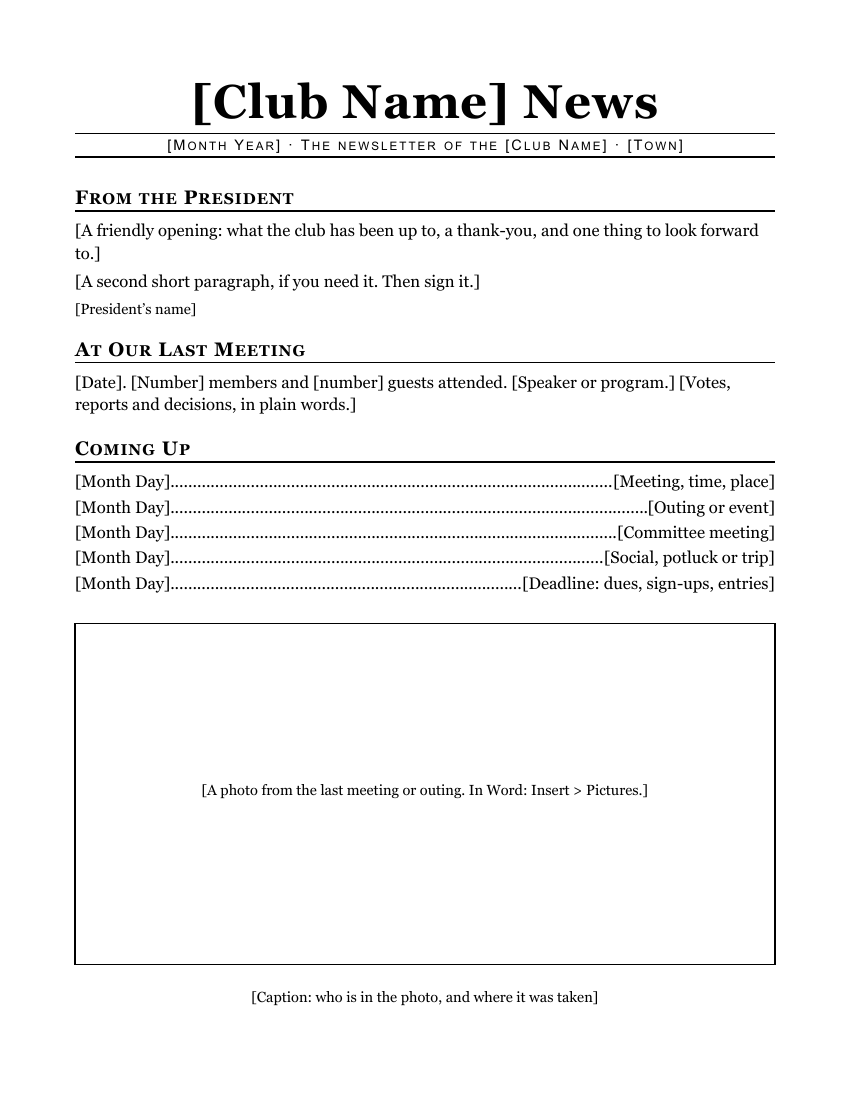
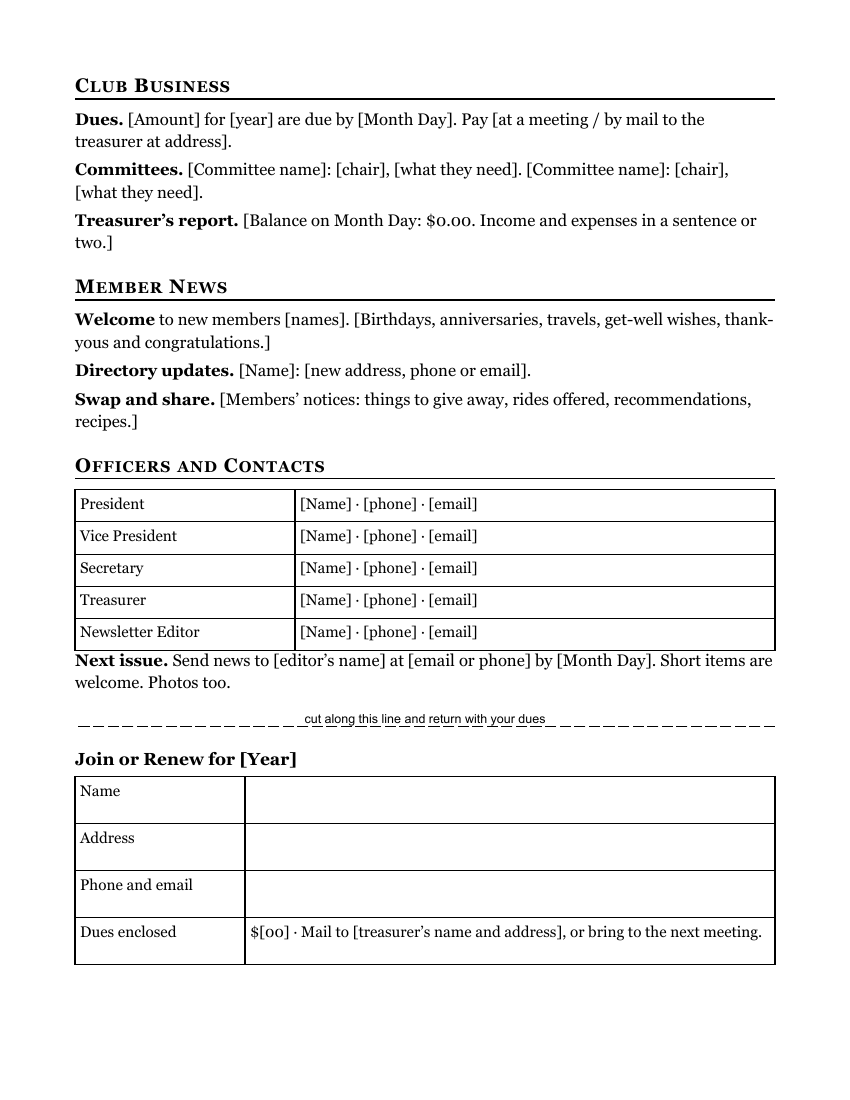
Garden clubs, lodges, auxiliaries, alumni groups, quilting guilds and retiree associations need a newsletter too, and this template is for them. It isn't religious at all: it has a masthead, the president's note, a summary of the last meeting, a dated list of what's coming, and on the back, the club's business and a membership form to cut off and return.
Clicking the button saves club-newsletter.docx (a Word document, 8 KB) to your Downloads folder. No sign-up, no email address.
- PaperUS Letter, portrait.
- PrintingOne sheet, printed on both sides
- In the file2 pages
- Opens inWord, Google Docs, LibreOffice
What it looks like
What's in it
- Masthead: "[Club Name] News", with a ruled line for the month, the club's full name and your town.
- From the President, At Our Last Meeting (attendance, the program, and decisions) and Coming Up, five dated lines with dotted leaders.
- A large box for a photo from the last meeting or outing at the bottom of the front, with a caption line.
- Club Business on the back: dues, committees and a one-paragraph treasurer's report. Then Member News (welcomes, get-well wishes, directory updates, and "swap and share" notices), Officers and Contacts as a table, and a line with the deadline for the next issue.
- A Join or Renew form below a dashed cut line: name, address, phone and email, and dues enclosed.
Fill it in with Word
Change the masthead first: click on [Club Name] News and type the newsletter's name. Then work down the page, replacing each bracketed phrase.
"At Our Last Meeting" is not the minutes. Keep it to three or four sentences a member who missed the meeting would want to know: who spoke, what was decided, what happens next. The secretary's full minutes can go to the officers.
For the photo, click in the box and choose Insert > Pictures. Group photos print best when the people fill the frame; crop a wide shot by clicking the picture and choosing Crop on the Picture Format tab (Microsoft's steps).
The officers table holds phone numbers and emails. Ask your officers before printing theirs, especially if the newsletter is also posted online.
To find anything you missed, use Word's search box (Ctrl+F on Windows, Command+F on a Mac; Microsoft's list of Word shortcuts) and type a single [. Word jumps to every bracket still in the document. When the search finds nothing, you're done.
Open it in Google Docs or LibreOffice
If the editor job rotates, keep the newsletter in Google Docs so the next editor has it. Upload the .docx to Google Drive and open it (Google: work with Office files). It is a single column, so there's less for Google Docs to rearrange than in the folded templates. Check the photo box and the cut line on page 2.
In LibreOffice Writer, open it with File > Open, and keep the Word format when you save so other members can open it.
Print, mail or email it
Print two-sided, flipped on the long edge, so the membership form is on the back. The form is printed behind the photo at the bottom of the front page, so a member who cuts it off and sends it in keeps all the news and gives up only part of the photo. If you change how much is on the back page, print one copy and hold it up to a window to check that the cut line still falls behind the photo.
To mail it, fold it in thirds for a business envelope and use address labels. Our mail-merge label guide shows how to print a whole sheet of labels from your member list, in Word or from a Google Sheets list. To email it, save it as a PDF first so it looks the same on every screen.
Related help
More templates
- Folded Sunday Bulletin2 pages
- Large-Print Order of Worship2 pages
- Monthly Church Newsletter2 pages
- Funeral or Memorial Service Program2 pages
- Wedding Program2 pages
- Concert or Event Program2 pages
- Prayer List2 pages
- Half-Sheet Announcements1 page
- Family Cookbook Recipe Pages4 pages